


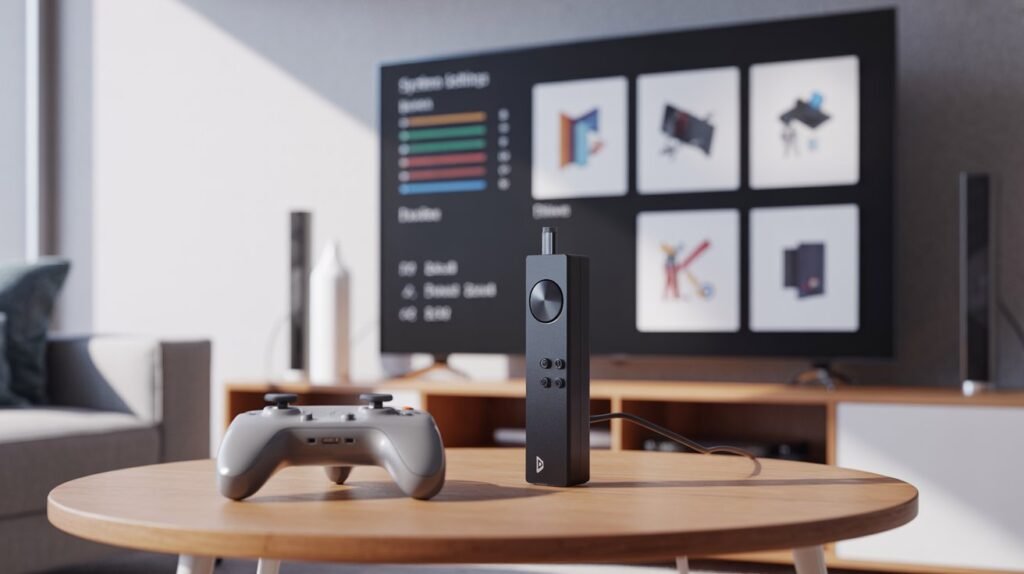
The manual settings HSSGameStick play a crucial role in determining how smoothly your games run, how good they look on your screen, and how responsive the controls feel during gameplay. While HSSGameStick is designed as a plug-and-play gaming device, relying only on default settings often limits its true potential. Manual configuration allows users to fine-tune performance, visuals, controls, and system behavior according to their TV, controllers, and personal preferences.
This comprehensive guide explains every important aspect of manual settings HSSGameStick. Whether you are a beginner or an experienced retro gaming enthusiast, this article will help you unlock better performance and a smoother gaming experience.
What Is HSSGameStick and Why Manual Settings Matter
HSSGameStick is a compact HDMI gaming stick that comes preloaded with multiple retro games and emulators. It connects directly to a TV or monitor and is controlled using wireless controllers. Although it works straight out of the box, the factory configuration is designed to be universal rather than optimized.
Manual settings allow users to take control of how the device behaves. Instead of relying on automatic configurations, you can customize resolution, aspect ratio, controller layout, performance limits, audio behavior, and interface design. These changes significantly improve gameplay quality, reduce lag, fix display stretching, and enhance overall stability. In short, manual settings HSSGameStick transform the device from a basic gaming stick into a fully customized retro gaming system.
How to Access Manual Settings on HSSGameStick
Accessing manual settings on HSSGameStick is usually straightforward. From the main home screen, you can navigate to the settings menu using your controller. In many versions, pressing the Start button opens a menu where system, display, and controller settings are grouped together.
Some models also allow quick access through button combinations such as Start + Select, which opens advanced configuration options during gameplay. The exact naming may vary, but settings are typically organized into system, display, input, UI, and performance categories. If you do not see “manual settings” explicitly labeled, they are usually integrated within these sections.
System Manual Settings Explained
System settings control the overall behavior of HSSGameStick. These options include language selection, time zone, startup behavior, and basic system preferences. Changing the system language can make navigation easier for non-English users, while correct time and region settings help maintain proper system organization.
Startup behavior settings define what happens when the device powers on. Some users prefer launching directly into the game menu, while others want the system settings or last played game to load automatically. Adjusting these options improves convenience and reduces unnecessary steps each time you turn on the device.
Display Manual Settings on HSSGameStick
Display configuration is one of the most important sections in manual settings HSSGameStick. These settings directly affect how games appear on your screen.
Resolution options usually include 720p and 1080p, with some versions offering higher resolutions. For most modern TVs, 1080p provides the best balance between clarity and performance. Higher resolutions may look sharper but can cause lag or stuttering on lower-powered models.
Aspect ratio settings determine how games are displayed. Classic retro games were designed for 4:3 screens, so selecting this ratio preserves their original look. Using 16:9 widescreen stretches the image, which some players prefer but may distort visuals. Manual scaling options also help fix overscan issues, where the screen appears cropped or zoomed.
Brightness and contrast controls allow fine-tuning for different TVs and lighting conditions, ensuring visuals remain clear and comfortable.
Controller and Input Manual Settings
Controller configuration is another key area where manual settings make a noticeable difference. Button mapping allows you to customize how actions are assigned, making controls feel natural and familiar. This is especially useful when switching between different types of games or controllers.
Sensitivity settings adjust how quickly inputs respond, which is important for fast-paced or precision-based games. Some versions also offer dead-zone adjustment, reducing accidental movements when analog sticks are slightly off-center.
Correct input configuration eliminates lag, prevents incorrect button responses, and ensures smooth gameplay across all supported games.
Performance and Optimization Settings
Performance settings help control how HSSGameStick handles system resources. These options include frame rate caps, power modes, and background process management.
Limiting the frame rate can improve stability and reduce overheating, especially during longer gaming sessions. Performance modes prioritize smooth gameplay, while power-saving modes reduce system load and heat. Choosing the right balance depends on your usage style and the types of games you play.
Optimizing performance through manual settings HSSGameStick helps prevent crashes, lag spikes, and audio-visual desynchronization.
Audio Manual Settings and Sound Customization
Audio settings allow users to control volume levels, sound output, and synchronization. Adjusting these settings helps eliminate echo, distortion, or delays that sometimes occur on certain TVs.
Some users prefer lowering background menu sounds while keeping in-game audio clear. Manual audio configuration ensures immersive gameplay without unnecessary distractions.
User Interface (UI) Customization Settings
UI settings control how the menu system looks and feels. Users can change themes, adjust layout styles, enable or disable background music, and control menu animations.
A simplified interface improves navigation speed, while visual customization adds a personal touch. UI settings also impact performance, as disabling unnecessary animations can make the system feel faster.
Game Save and Load Manual Settings
Save state management is a powerful feature of HSSGameStick. Manual save settings allow players to save progress at any point, rather than relying solely on in-game checkpoints.
Users can choose between automatic and manual save states, manage storage space, and delete outdated saves. Proper configuration prevents data loss and ensures progress is always protected.
Emulator-Specific Manual Settings
Each emulator on HSSGameStick may have its own configuration options. These settings affect graphics rendering, audio timing, and compatibility with specific games.
Adjusting emulator-specific settings helps fix issues like graphical glitches, slow performance, or sound problems. Experienced users often fine-tune these options to achieve the best results for each gaming system.
Storage and Game Management Settings
Storage settings allow users to manage internal memory, SD cards, and game libraries. Manual control over storage ensures that games load correctly and prevents corruption.
Users can safely add or remove games, organize folders, and manage available space. Backing up storage before making major changes is strongly recommended.
Network and Connectivity Settings
Some HSSGameStick versions support basic network connectivity. Manual network settings allow configuration of Wi-Fi connections, firmware updates, and online features if available.
Proper network setup ensures smooth updates and prevents connectivity errors during system maintenance.
Recommended Best Manual Settings for HSSGameStick
For most users, the best configuration includes 1080p resolution, 4:3 aspect ratio for retro games, properly mapped controllers, moderate sensitivity, and balanced performance mode. Disabling unnecessary visual effects improves stability, while manual save states enhance convenience.
These recommended settings provide a smooth, visually accurate, and responsive gaming experience across most TV setups.
Common Problems Solved Using Manual Settings
Many common issues such as black screens, stretched visuals, unresponsive controllers, or lag can be fixed through manual settings. Resetting display options, remapping controls, or lowering resolution often resolves these problems quickly.
Manual configuration empowers users to troubleshoot issues without external tools or repairs.
Safety Tips Before Changing Manual Settings
Before making major changes, always back up important data and save states. Avoid extreme performance tweaks unless necessary, and note original settings in case you need to revert. If something goes wrong, restoring default settings usually fixes most issues.
Frequently Asked Questions About Manual Settings HSSGameStick
Manual settings are safe when adjusted carefully and provide significant benefits. Performance improvements, better visuals, and smoother controls are the main advantages. While incorrect settings can cause temporary issues, they are almost always reversible through reset options.
Final Thoughts
Understanding and applying manual settings HSSGameStick is the key to getting the best possible performance from your device. With proper configuration, HSSGameStick delivers a stable, immersive, and highly enjoyable retro gaming experience tailored exactly to your preferences.
Want more to read? Visit dDooks.
